
Connect Home Assistant
Connecting takes two steps: install the NexusPlan integration in Home Assistant once, then pair it with a project using a one-time code.
1. Install the integration
Section titled “1. Install the integration”With HACS (recommended — you get updates in HACS):
- In Home Assistant, open HACS, then the menu (⋮) → Custom repositories.
- Add
https://github.com/nexusplan-io/nexusplan-hawith the type Integration. - Search HACS for NexusPlan, open it and click Download.
- Restart Home Assistant (Settings → ⋮ → Restart Home Assistant).
Without HACS: download the NexusPlan integration, copy the
nexusplan folder from it into your Home Assistant’s custom_components folder (so you have
config/custom_components/nexusplan/; the Samba share, File editor or Studio Code
Server add-ons all work for this), and restart Home Assistant. To update, replace the folder
and restart.
The integration is open source (MIT) — the code, releases and issue tracker are on GitHub.
2. Create a pairing code in NexusPlan
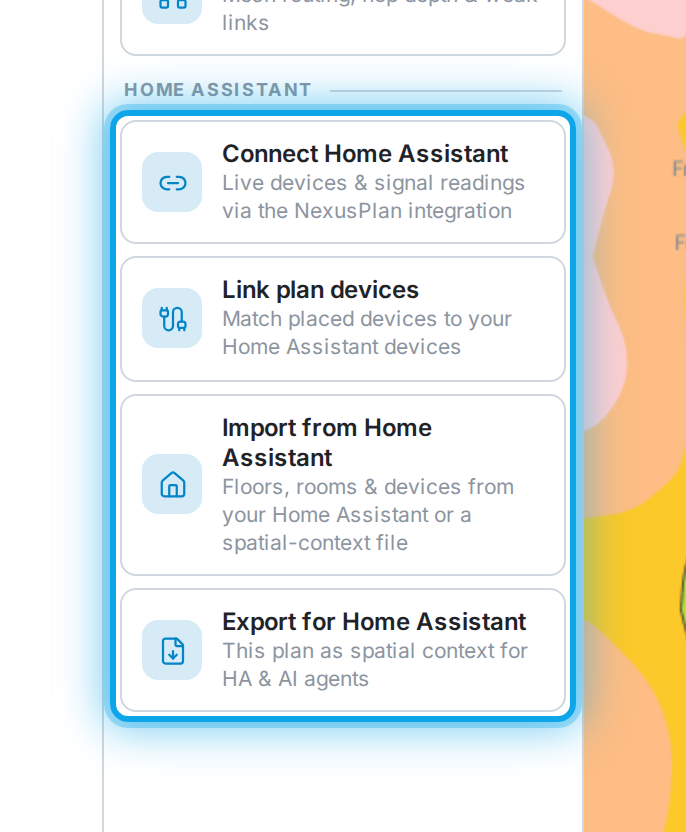
Section titled “2. Create a pairing code in NexusPlan”Open the project, then Planners → Home Assistant → Connect Home Assistant.
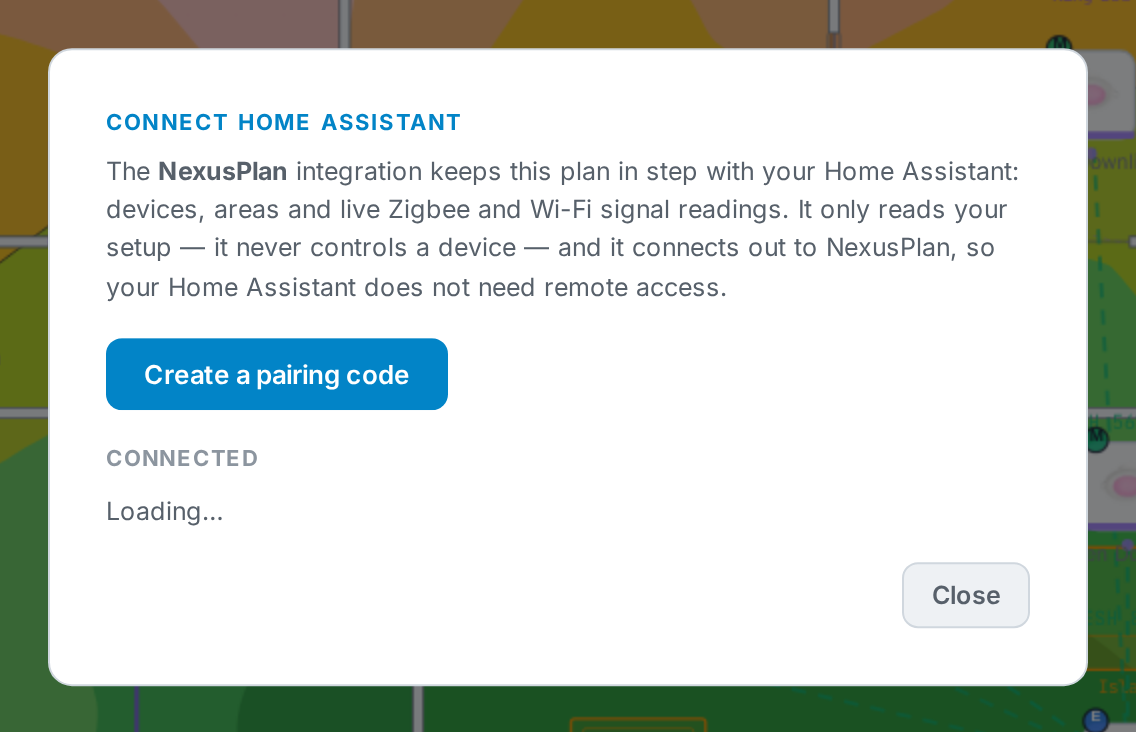
Click Create a pairing code.
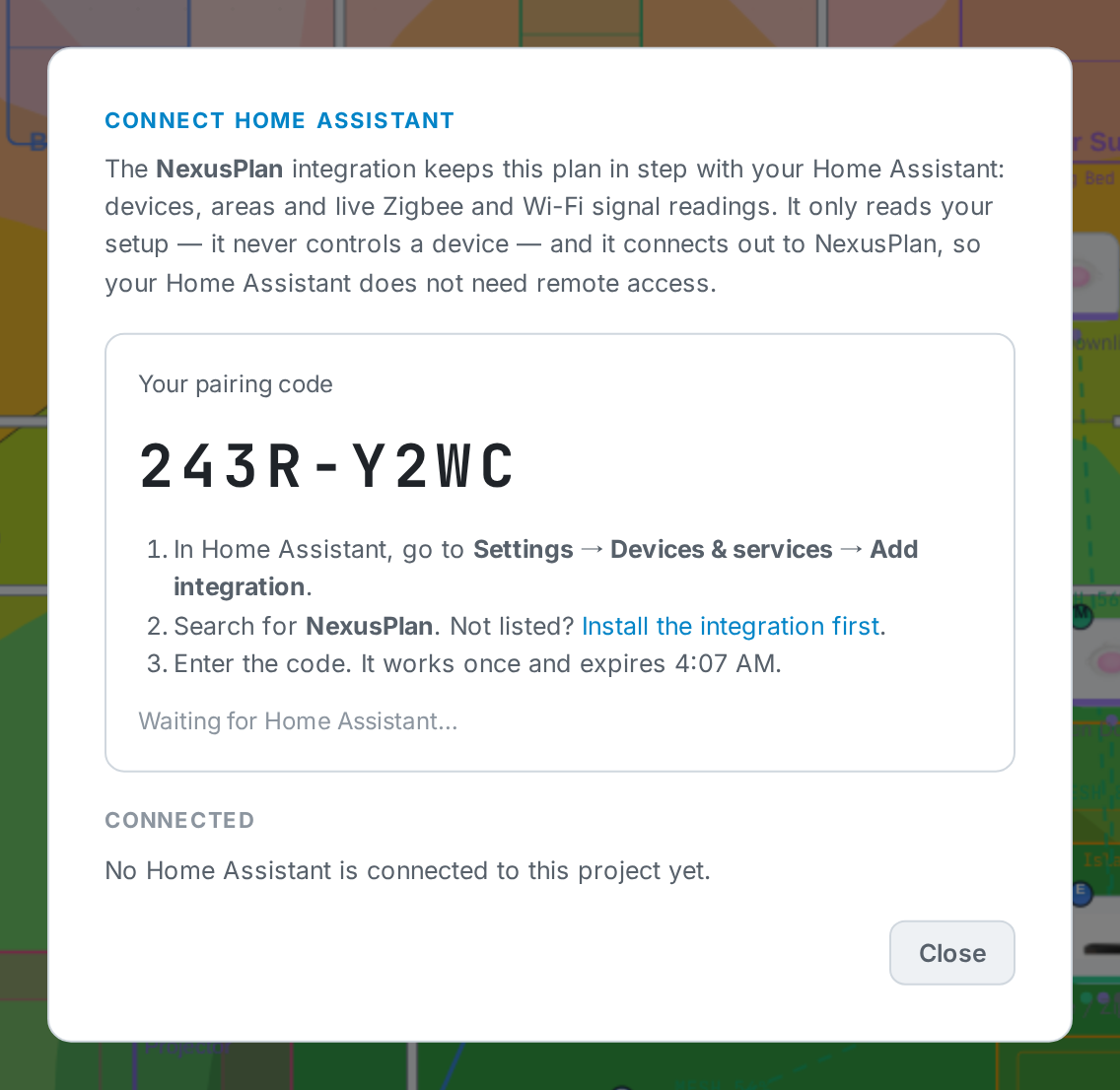
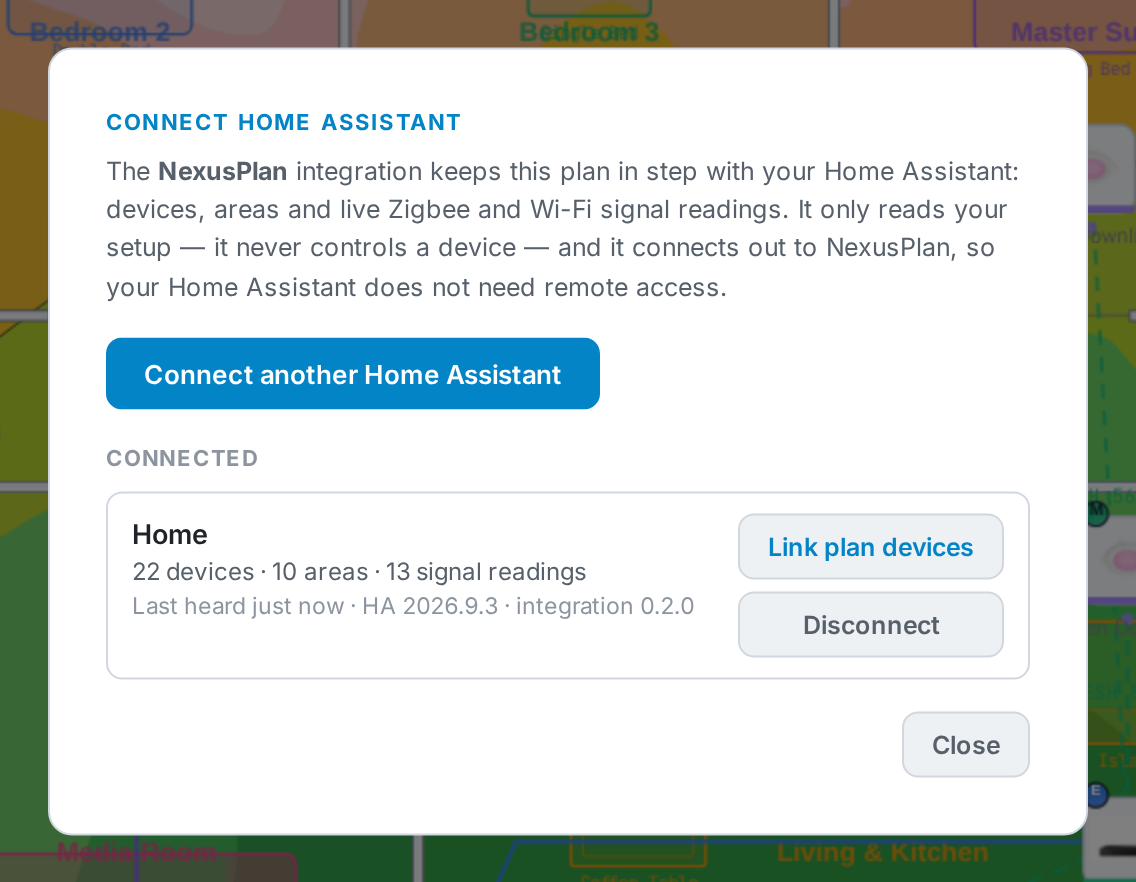
The code works once and lasts 10 minutes. Leave the dialog open — it notices when Home Assistant uses the code.
3. Enter the code in Home Assistant
Section titled “3. Enter the code in Home Assistant”-
Go to Settings → Devices & services → Add integration.
-
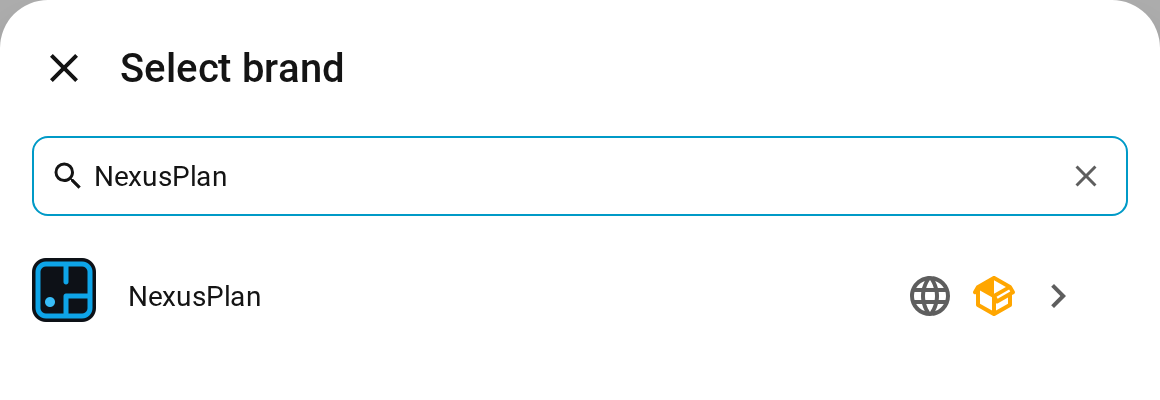
Search for NexusPlan and choose it.
-
Enter the code and click Submit. Leave Advanced alone.
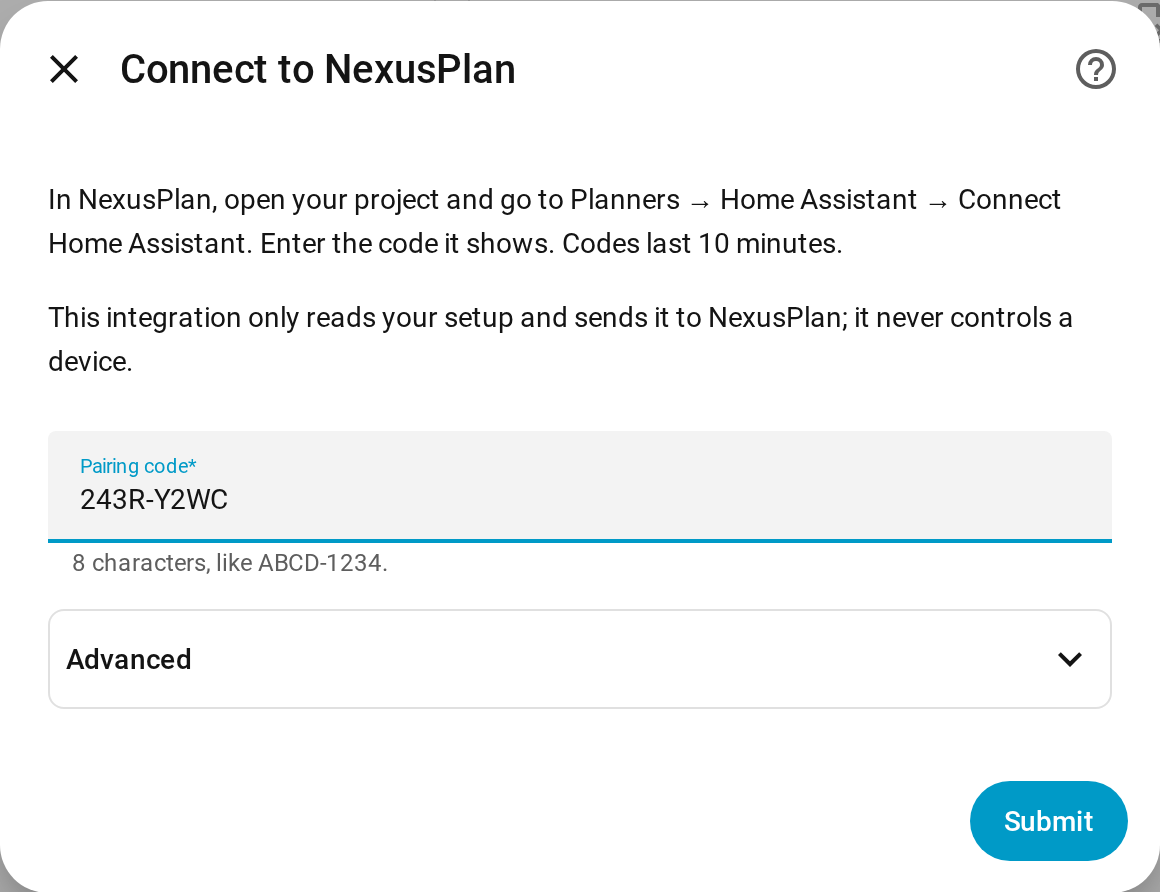
That’s it. Home Assistant sends its devices and areas straight away and again whenever they change, and signal readings every five minutes. In NexusPlan, the dialog now lists the connection:
In Home Assistant, NexusPlan · your project appears as a service with diagnostic sensors — Connected, Last device sync, Last signal sync, Devices synced and Signal readings synced.
The plan in Home Assistant’s sidebar
Section titled “The plan in Home Assistant’s sidebar”NexusPlan appears in Home Assistant’s sidebar, showing the plan — floors, devices, coverage, 3D and plan health. Anyone who can see the sidebar sees the plan read-only.
To edit, click Sign in to edit and sign in to NexusPlan inside the panel. You stay signed in there; signing in inside Home Assistant doesn’t sign you in to NexusPlan anywhere else. Passkeys can’t be used inside the panel — sign in with your email and password.
To hide the panel, or show it to administrators only, open the integration in Home Assistant (Settings → Devices & services → NexusPlan → Configure).
Disconnect
Section titled “Disconnect”Either:
- in NexusPlan, Connect Home Assistant → Disconnect — syncing stops immediately, and Home Assistant asks to be paired again; or
- in Home Assistant, delete the NexusPlan integration.
Links between plan devices and Home Assistant devices are saved in the plan, so they survive disconnecting and reconnecting.
Troubleshooting
Section titled “Troubleshooting”| What you see | What to do |
|---|---|
| That code is not valid | Codes last 10 minutes and work once. Create a new one. |
| That code is for a different NexusPlan project | This Home Assistant is already connected to another project. Create the code in that project, or remove the existing NexusPlan entry first. |
| Could not reach NexusPlan | Home Assistant needs to reach the internet over HTTPS (it connects out; nothing connects in). |
| Too many attempts | Wait ten minutes, then create a new code. |
| Connected is off: Disconnected in NexusPlan | The link was removed in NexusPlan. Follow Home Assistant’s Reconfigure prompt with a new code. |
Download diagnostics on the integration’s page in Home Assistant shows exactly what is sent to NexusPlan. The link’s credential is never included.